
Welcome to Day 5 of the challenge.
Most of us are paying for subscriptions we set up years ago.
For tools we don’t use. For trials that auto-renewed. For services we forgot we’d signed up for.
The UK government just put a number on it. We throw away £400 million a year on subscription traps (source: gov.uk). I’d put money on it being higher.
We just never sit down with the statement to find them.
Today we do. With Cowork.
A word before we start
This is your first proper Cowork day. Yesterday’s setup earns its keep.
The reason this task feels heavy when you imagine doing it on a Sunday is the bit before the cancelling: opening the statement, going line by line, working out what each charge actually is, deciding which to keep. That’s the bit Cowork takes.
You stay the decision-maker. Claude does the reading.
A note on the numbers, since I’m not going to throw a figure at you: I don’t know what you’ll find. Maybe £15 a month. Maybe £200. The point isn’t the number. The point is the file you’d been avoiding, turned into a list you can act on.
Step by step
Step 1.
Open your bank’s app or website. Find the export option. Download 12 months of statements as a CSV or PDF. You need the full year because monthly subs show up in any month, but annual ones only fire once a year.
(Look in Statements, Documents or sometimes in the Help menu. If your bank caps the export at 3 or 6 months, pull what you can.)
Save the file to your Cowork folder on Desktop (the one you made yesterday).
Step 2.
Open Cowork in your desktop app. Use Opus (yesterday’s lesson).
Step 3.
Drag the file into the chat, or use the + button to attach it. Then paste this brief:
Read this 12-month bank statement. Find every recurring or subscription-style charge you can identify. Group them by frequency: monthly, annual, quarterly, weekly. For each one, list the company name as it appears, the amount, the frequency and what you can guess the service is (don’t make stuff up, only guess where the name is obvious).
Annual subscriptions only appear once in 12 months but have subscription-style names (Netflix, Spotify, software, gym, magazine, Apple, Amazon Prime). Include them and flag as annual.
Format as a clean table I can scan. Don’t include one-off purchases, only recurring charges.
Before you start, list 3 clarifying questions you need answered, numbered 1 to 3. Then I’ll work through them in order. Focus on anything you’re not sure how to categorise, anything that looks unusual or anything you want me to confirm. No em dashes, no double-hyphens in your reply.
(That last line is the Day 3 move, adapted for 3 questions instead of 5. Use it on every brief from here on.)
Step 4.
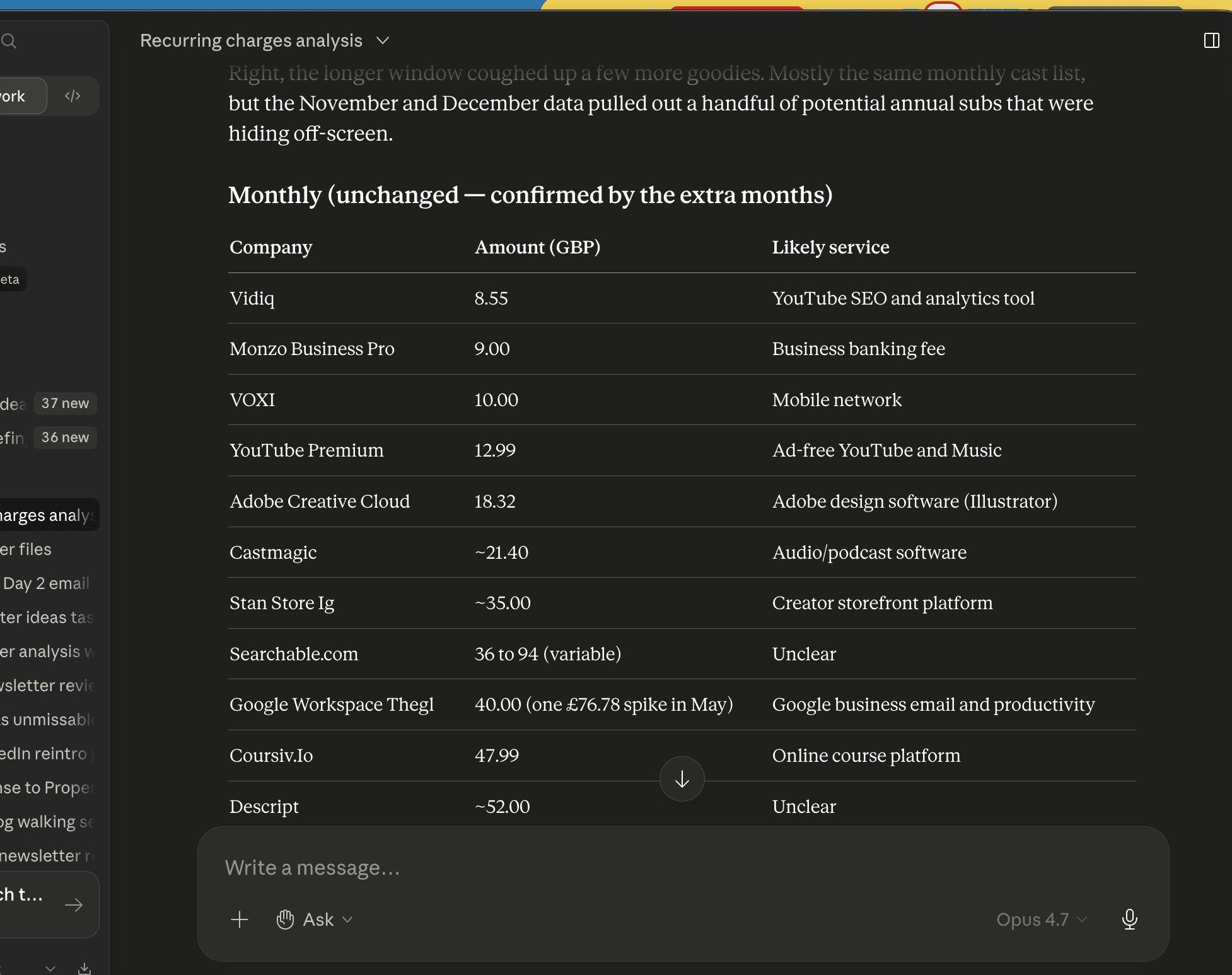
Answer Claude’s three questions. Let Claude generate the table.
Step 5.
Go through the table. For each row, mark one of:
- Keep. Still using it, still worth it.
- Cancel. Forgot about it, don’t use it, didn’t even know I had it.
- Unsure. Need to look up what it is or whether it’s still worth it.
You can do this inside Cowork.
Just say: “Add a Status column. For each row, ask me what I want to mark it as, one at a time.”
Step 6.
For each “Cancel” row, ask Claude:
> What’s the cleanest way to cancel [service name]? Give me the link or the path. Don’t make me search for it.
Claude will give you the cancellation page or the steps. Some you’ll do in the moment. Others you’ll batch into a “to cancel this week” list.
Step 7.
Save the finished table back into your Cowork folder. We’ll come back to it next time we run this task.
Step 8.
Cross-check the aggregators. A lot of annual subscriptions hide behind Apple, Google Play, PayPal or Amazon. On the bank statement they just read “APPLE.COM” or “PAYPAL” with no clue what they’re for. Claude can’t decode those from the statement alone. Each platform has a clean subscription list. Pull them up and add anything Claude missed:
Apple: iPhone Settings, tap your name, then Subscriptions. (Or apple.com/account, then Subscriptions.)
Google Play: play.google.com, menu, then Subscriptions.
PayPal: Settings, Payments, then Manage automatic payments.
Amazon: amazon.co.uk/your-account, then Memberships & Subscriptions.
Add anything new to your Cowork table. This is the step that catches what the statement hides.
BONUS AND FAB TEST
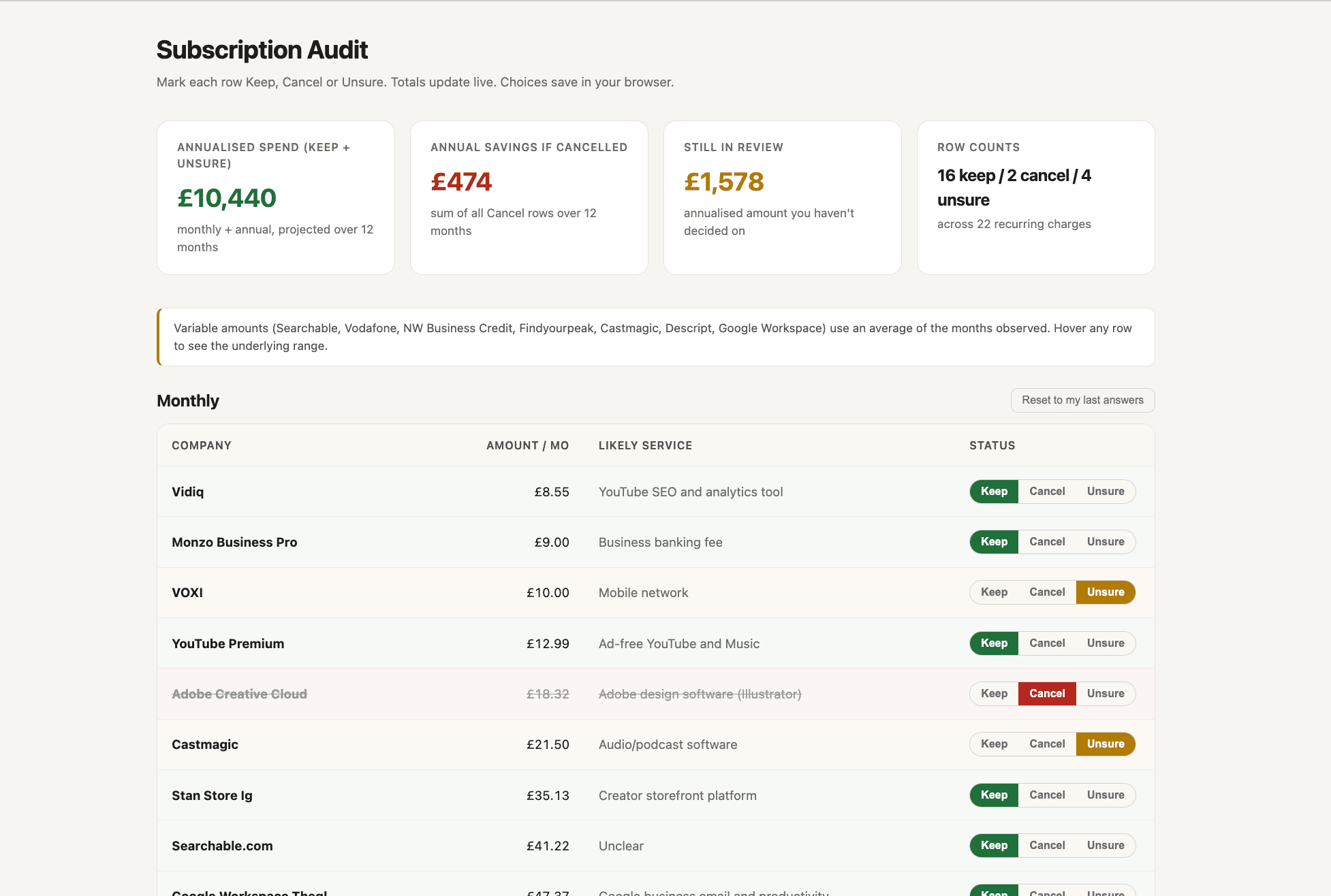
THIS is one of my favourite things - and takes this from an ok spreadsheet to a wow dashboard you can control. Ask Claude:
> Turn this table into a simple HTML dashboard I can open in my browser. Show total monthly cost, total annual cost and let me mark each row keep, cancel or unsure.
Claude builds one in seconds. Save it in your Cowork folder, bookmark it, and next quarter drop a fresh statement in and re-run. We come back to building tools like this properly in future in the challenge - and we will build more extensions to this - including a scan of emails and a link to web page to cancel.
A safety note
Bank statements are sensitive. NEVER drop a file into Cowork without checking what’s inside first.
Two ways to handle that:
1. Redact before sharing. Most banks let you blank out the account number when you export. If not, open the file, replace your account number and full address with X’s, save as a fresh file. Pass the redacted version to Claude.
2. Use the chat, delete after. Claude doesn’t hold your file beyond the conversation. When you’re done, delete the chat. The data goes with it.
If anything in the file makes you uncomfortable sharing, redact first. The exercise still works on a partially-redacted file.
(Yesterday’s permissions lesson holds: Cowork folder only, read-only first, disconnect after, audit monthly.)
What you’ll notice
There’s almost always one charge you’d forgotten about. Often two or three. The total adds up.
The bigger shift is happening underneath the cancel list. A task you’d been avoiding for months. Done. With a colleague (Claude) doing the bit that always stopped you (sitting down with the file).
That’s the rhythm of the rest of the challenge. AI doesn’t replace the decision. AI removes the friction between you and the decision.
Why this works
The friction was never the cancelling itself. Most subs take ninety seconds to cancel once you’ve found the page. The friction was opening the statement, going line by line, working out what each charge is, deciding which to keep.
Cowork eats the line-by-line part. You’re back to making decisions, which is the part of the task that actually needs you.
A note on the version I actually run
When I do this on my own statements, I don’t stop at the bank file. I also search Gmail for “subscription”, “renewal”, “trial” and “your payment”. The inbox catches what the statement misses: annual subs paid via PayPal, trials that haven’t billed yet, things charged to cards I’ve since closed.
Right now that’s a manual hunt. On Day 7 we connect Gmail to Claude and the inbox version of this becomes a one-prompt task. That’s where we catch the annuals the statement couldn’t see today.
Once we have added connectors - I’ll share an update on this task - so you can build your own subscriptions tracker.
Key takeaway
One bank statement. One brief. A list of recurring charges grouped by frequency, marked keep / cancel / unsure, with cancellation links for the ones you’re killing. The job you’d been putting off, turned into money back.
Where this is heading
You just did the first proper Cowork task. Tomorrow we add the move that catches you when something doesn’t work the way you expected. Day 7 we connect Gmail and catch the annuals the statement couldn’t see.
Tomorrow on Switched On
Day 6: The rescue move.
The trick that keeps you out of the “I give up, this doesn’t work for me” ditch.
Nishma x
P.S. How did today land? Three buttons, thirty seconds → Tap one
I read every response. The data shapes the rest of the challenge.
Catching up? Days 0 to 4 are on the Switched On Substack archive here.
Got a friend or a colleague who this might be useful for? Send her to nishma.co/30daychallenge
#SwitchedOn #SwitchedOnAIChallenge