Welcome to Day 4 of the challenge.
For the first three days, Claude has lived in your browser. A tab. A chat. Type a brief, get a reply.
That’s one corner of what Claude can do.
Today you meet the rest. The desktop app. The version of Claude that can read the files on your computer, not just the messages you type. The setup that powers every wow day from tomorrow onwards.
This is the day Claude gets even more useful.
A word before we start
The new hire from Day 1 has been answering your messages from a coffee shop. Today they move into the office, get a desk, and you hand over access to the filing cabinet.
That sentence is the whole shift.
Cowork (the desktop app) is the version of Claude that can act on your computer. That’s the prerequisite for every tangible result day: cancel subs, read the avoided doc, prep for the meeting, sort the folders. Browser-only Claude can’t do any of those properly.
It also means three things to set up well from the start:
1. The install itself
2. Picking the right model for the job
3. Permissions, which is the bit most people skip and then regret
About ten minutes of doing. Plus reading you can do with a coffee.
Part 1: install Cowork (5 mins)
Step 1. Open claude.ai in your browser. Sign in.
Step 2. Scroll to the bottom of the screen and find the Download for Mac / Windows link. (Or go straight to claude.ai/download.)
Step 3. Install. Open the app. Sign in with the same account.
Step 4. If you’ve been on the free tier, this is the upgrade moment. Cowork needs Pro. Click the upgrade prompt. (Pro pays for itself in week one if you do tomorrow’s cancel-subs day properly. More on that tomorrow.)
Step 5. Open a new chat in the desktop app. Across the top of the chat window, you’ll see a toggle between Chat, Cowork and Code. Click Cowork.
(Code is the developer side of Claude. You can ignore it for this challenge.)
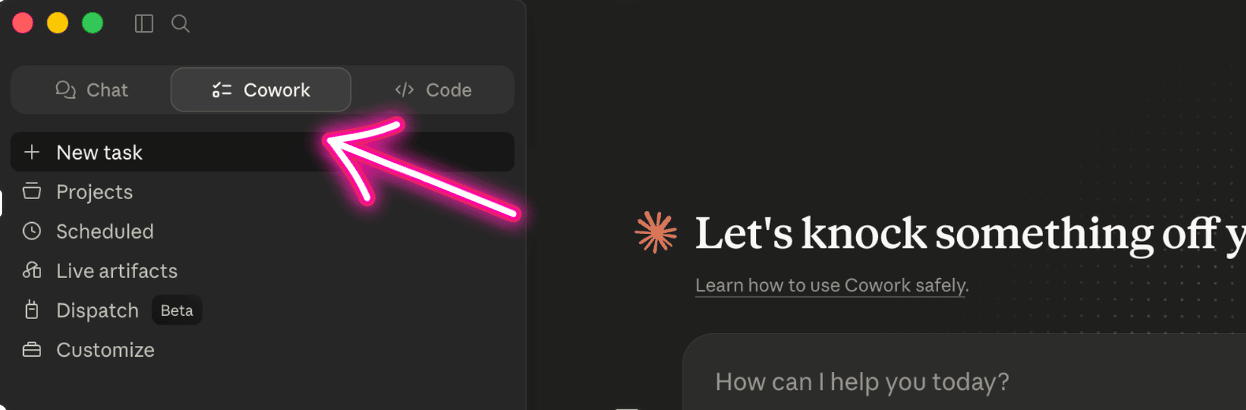
You’re now in the version of Claude that can read your computer.
Part 2: which model to use when (3 mins)
In the top of the chat window, there’s a model selector. Three to know:
- Opus. The deepest thinker. Use for hard analysis, long comparisons, the moments you need Claude to genuinely reason. Costs the most tokens. Default for the wow days.
- Sonnet. Balances quality and token budget. Most tasks live here. If you’re hitting token limits on Opus, switch to Sonnet and you’ll usually be fine.
- Haiku. Fast and cheap. Quick lookups, classifications, batch tagging. Not for the heavy stuff.
Don’t memorise it. Just know the selector exists. Default to Opus. Drop to Sonnet if Claude tells you you’re near a limit.
Part 3: permissions (5 mins, the most important section)
This is the bit most people hesitate on. However,if you do it properly, it removes the biggest barrier to actually using AI with confidence.
Cowork can do things in the real world. Read files. Edit folders. Create documents. Send messages (with the right connectors). That power is only useful if you trust the setup.
The good news: Claude is built to ask first. Every action that touches your computer or your accounts triggers a permission prompt. You decide.
Before you grant any access: make your Cowork folder
On your Desktop, create a new folder. Call it Cowork. Or Claude. Or AI-Workspace. The name doesn’t matter. What matters: this is the only folder you give Claude direct access to.
Anything you want Claude to read or work with goes in this folder. Everything else stays out. When you’re done with a file, drag it back out. Like clearing your desk at the end of the day.
Why this is the move:
Your Desktop and Downloads folders accumulate without you noticing. Screenshots of WhatsApp threads. Half-drafted emails saved as PDFs. Bank statements you exported once. Photos of your passport. Tax returns from your accountant. A signed contract from a client.
Granting Claude access to your whole Desktop or all of Downloads means everything in those folders is in scope the moment you approve it. Including files you forgot were there. Including files you’ll drop in next week without thinking.
One dedicated folder fixes that. You decide, file by file, what Claude sees.
The rule from now on: when Claude asks to read Desktop, Downloads, Documents, or your iCloud Drive root, say no. Point it at your Cowork folder instead.
The five permissions principles
1. Read-only first. When Cowork asks to read a folder, that’s fine. It can see, not change. Get comfortable with read-only before you ever grant write access.
2. Always-allow vs needs-approval. When Claude does something the first time, it asks. You can choose “allow once” (asks again next time), “always allow” (won’t ask again), or “block.” Leave most things on “ask each time” until you trust the pattern. Only switch to “always allow” for actions you do constantly and trust completely. Never set “always allow” on Desktop, Downloads, Documents, or any folder that accumulates.
3. Specific resources, not all resources. This applies to local folders AND connected tools. For local files: the Cowork folder, not Desktop. For connectors with lots of stuff in them (a Google Drive, an Air Table base, a Notion workspace, an Obsidian vault): only grant access to the specific sub-folders or bases Claude needs. Not the whole account.
4. Disconnect what you’re not using. If you connected something for a one-off task, disconnect it after. Treat connectors like office keys. You don’t hand out copies.
5. Audit monthly. Once a month, open Settings, look at what’s connected, disconnect what you don’t recognise or no longer need.
What to NEVER give Claude direct access to
- Bank login credentials. Downloading a CSV statement and dropping it in your Cowork folder is fine. Giving Claude your login details is not.
- Plain-text password files. Same logic.
- Your whole Obsidian, Notion, or Roam vault. Second brains hold years of half-formed ideas, personal reflections, things you wrote when you were angry. Don’t grant Claude wholesale access. Either spin up a dedicated AI-facing vault, grant folder-level access to only the sections you want Claude to read, or copy out specific notes into your Cowork folder.
- Your Photos library. Same reason. It’s the most personal archive you own.
- Your iCloud Drive root or whole Documents folder. Same logic as Desktop. Use the Cowork folder pattern.
- Shared accounts where other people haven’t consented to AI reading their stuff. Family iCloud, work systems with colleague data, group chats.
What Anthropic stores (the question everyone asks)
Honest answer: your conversations are stored on Anthropic’s servers. Files you upload are stored for the duration of the chat. Connectors typically stop having access the moment you disconnect, but anything Claude already read into a conversation lives in that chat history until you delete it.
Two practical takeaways:
- Treat Claude like a record. Don’t paste anything in that you wouldn’t be comfortable existing somewhere. The patterns above (specific folders, read-only, disconnect after) limit what gets stored in the first place.
- You can delete. Individual chats, whole projects, your account. Delete the chat and the data goes with it.
The full policy lives at anthropic.com/privacy. Five-minute skim, worth doing once.
That’s the safety stack. Cowork folder only. Read-only first. Specific resources, not whole accounts. Disconnect when done. Audit monthly. Never credentials. Vaults stay private.
A first Cowork touch (2 mins)
Let’s prove the install works AND the Cowork folder pattern works.
Step 1. Drop one file into your Cowork folder. Any file. A PDF, a screenshot, a Word doc. Doesn’t matter what, as long as it’s nothing sensitive.
Step 2. In Cowork mode, type:
> Look in my Cowork folder on Desktop. List the files you see, just the names, no analysis. Read-only.
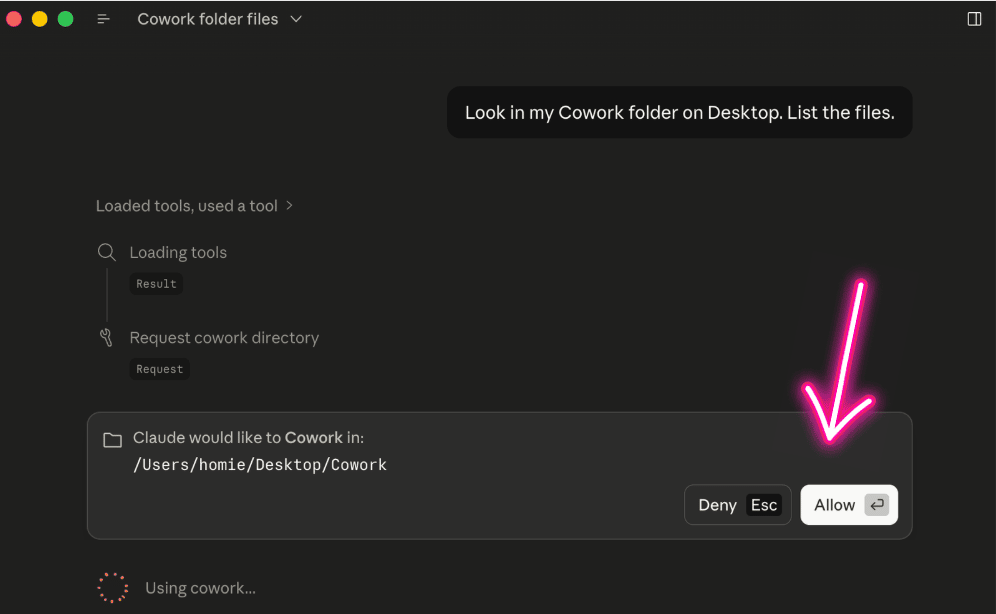
Step 3. Claude will ask permission to read that specific folder. Approve “allow once” (not “always allow”).
Step 4. Claude lists the files.
Notice what just happened. Claude got access to the one folder you named, not your whole Desktop. It asked first. You approved once. It read, told you what’s there, and that’s it.
That’s the pattern of every Cowork day from here on.
What you’ll notice
This day felt like setup, because it was. The reason we spent the time on install and permissions properly is because the next four days move fast and we won’t pause for either again.
You’ve crossed the line. From this point on, Claude isn’t a chat window. It’s a colleague with desk access.
Why this works
Every tool that scared people in the last 20 years (online banking, contactless payments, two-factor auth, password managers) became normal once people understood what the tool could and couldn’t see. AI is the same. The permissions teaching is what gives you the confidence to actually use Cowork instead of leaving it installed and unopened.
The setup is also portable. Files in folders, permissions you understand, a workflow you’ve practised. None of that locks you to Claude. You’re learning patterns that hold up across every AI tool that comes next or if you wanted to swap to ChatGPT, Gemini, Perplexity etc
Key takeaway
Four things installed and understood:
1. Cowork is on your desktop. Use it from tomorrow.
2. You have a dedicated Cowork folder on your Desktop. That’s the only folder Claude gets access to. Everything in. Everything out.
3. Opus for deep work. Sonnet for most things. Haiku for fast jobs.
4. The safety stack: Cowork folder only. Read-only first. Specific resources, never whole accounts. Disconnect when done. Audit monthly. Never credentials. Vaults stay private.
That’s the foundation for every wow day from here.
Where this is heading
Four days in. The foundations are now in place. Tomorrow we start collecting tangible results.
Tomorrow on Switched On
Day 5: Find the money you didn’t know you were paying.
The first proper Cowork day. The kind of result you can show someone.
Nishma x
P.S. How did today land? Three buttons, thirty seconds → Tap one
I read every response. The data shapes the rest of the challenge.
Catching up? Days 0 to 3 are on the Switched On Substack archiven here.
Got a friend or a colleague who this might be useful for? Send her to nishma.co/30daychallenge
SwitchedOn #SwitchedOnAIChallenge